
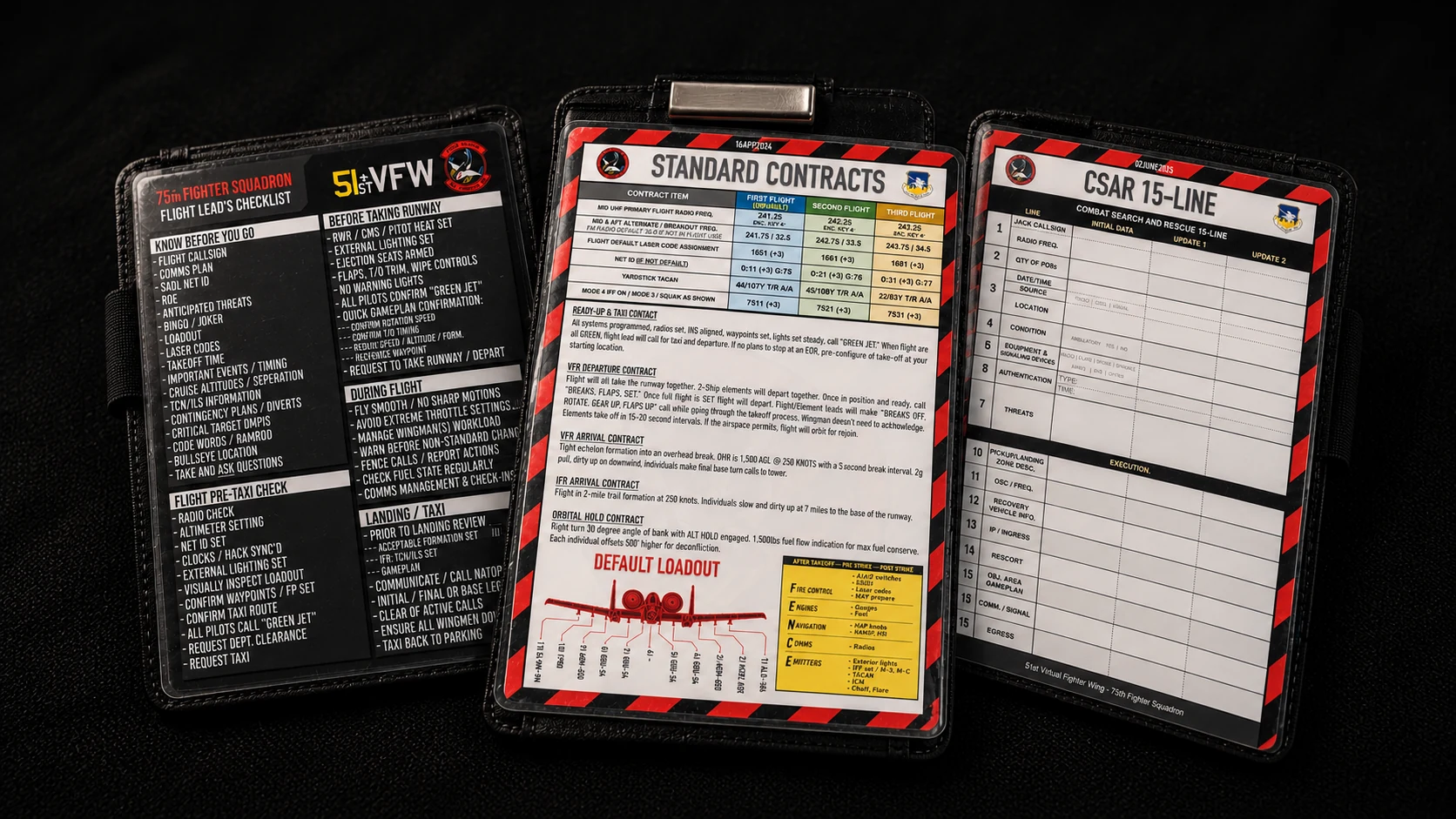
KNEEBOARD PACK
Squadron contracts, checklists, and mission references. Right where you need them.
Opens Google Drive. Select your pages, then choose Download.
Quick installationReady for the next sortie
Three steps. Then fly.
Download & extract
Download the PNG pages from Drive. If they arrive in a ZIP, extract it. Close DCS before installing.
Copy the pages
Put the PNG files directly in the folder below. Create
Kneeboard\A-10C_2if it doesn’t exist.Open in the cockpit
Restart DCS, enter your A-10C II, then open the kneeboard and page through to the squadron references.
%USERPROFILE%\Saved Games\DCS\Kneeboard\A-10C_2Use the profile folder your game already writes to. A custom profile or relocated Saved Games folder needs its own equivalent path.
Need a hand installing?Full walkthrough, controls, and troubleshooting
Save the actual PNG pages
In the shared Google Drive folder, select the pages you want, right-click the selection, and choose Download. If Drive creates a ZIP, right-click the downloaded archive in Windows and choose Extract All…. Open the extracted folder to find the PNG files.
Find the profile DCS actually uses
Press Win + R, enter
shell:SavedGames, and press Enter. Open DCS, or DCS.openbeta if that is your active profile. Look for the existingConfigandLogsfolders; launch DCS once if the profile has not been created yet.Steam uses a Saved Games profile too. A relocated Saved Games folder opens through the same command; a custom
-wprofile uses its custom folder name instead of DCS. Use that profile’s equivalent path.Copy images into the aircraft folder
Inside the active profile, open or create Kneeboard, then A-10C_2. Copy the .png files directly inside A-10C_2. Keep their filenames and avoid an extra KNEEBOARDS wrapper folder. This path is for the A-10C II; the original A-10C uses a separate
A-10Cfolder.Example finished path
Kneeboard\A-10C_2\75th_1-Standard_Contracts.pngOptional ground-unit ID cards can go in the same aircraft folder. Keep unrelated existing pages, and back up any personally edited files before replacing squadron pages with matching names.
Find your kneeboard controls
Restart DCS and enter an A-10C II cockpit. In Options → Controls, select the A-10C II profile and search for Kneeboard. Find or bind the toggle and next / previous page commands, then page through to the squadron references.
Installation references: DCS profile folders ↗ · A-10C II kneeboard folder ↗